
Once you have registered a company, you can add as many coworkers to it as you want. To invite a new coworker, go to settings (1) and click Coworkers (2). Now you will get all the coworkers listed that have already been added to the company:
If you now want to invite a new coworker, click Invite Coworker (3).
A new dialog window opens where you can enter the e-mail address of the coworker you want to invite:
You can also enter an optional invitation text that will be added to the automated invitation. Furthermore, you can determine here whether the coworker should be an admin of the company or not. As an admin, the coworker can, for example, adjust the company master data or, if you are a market operator, adjust the settings of the respective marketplace. If he is not an admin, he cannot do this.
In this step, you must also define the role of the colleague. There are two roles to choose from here:
1. Manager
2. Field worker
Most of your colleagues will probably be managers, in this role they can then edit leads and view leads in the various lists. The field worker role is only useful if they are only to post leads to a third party marketplace but not follow them up. In this case, you would select field worker without admin rights. This empowers the colleague to post leads to a third party marketplace, but not to change settings or view leads from other colleagues.
Once you have added the email address in this step and clicked Invite, the coworker will receive an invitation to your company that looks like this:
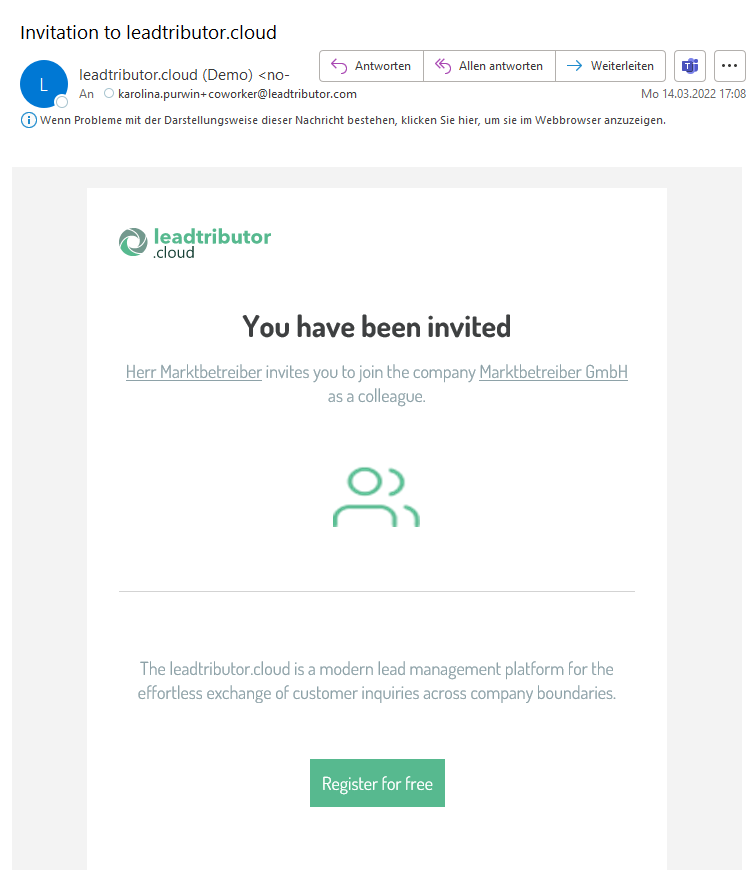
With a click on Register for free a window in the browser opens in which the coworker can enter his or her e-mail address and the desired password:
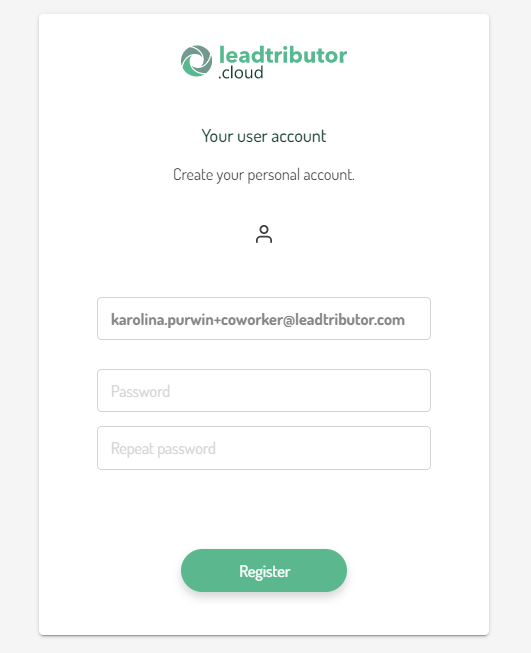
After filling in the form, the coworker can click Register. He or she will now receive a verification email. After having confirmed the email address, he or she can become active as a coworker of the company.
Comments
0 comments
Please sign in to leave a comment.