
Tasks and appointments not only help you to be even better organized in your day-to-day business, but also prevent unnecessary reminder emails. These are follow-up emails that are sent when the duration of a phase of the sales pipeline is exceeded. By setting a task or an appointment, the follow-up email is suspended, even if the lead is actually overdue based on the specified phase duration. To create tasks and appointments, proceed as follows:
Open the lead you want to add a task or appointment to and go to the journal on the right:
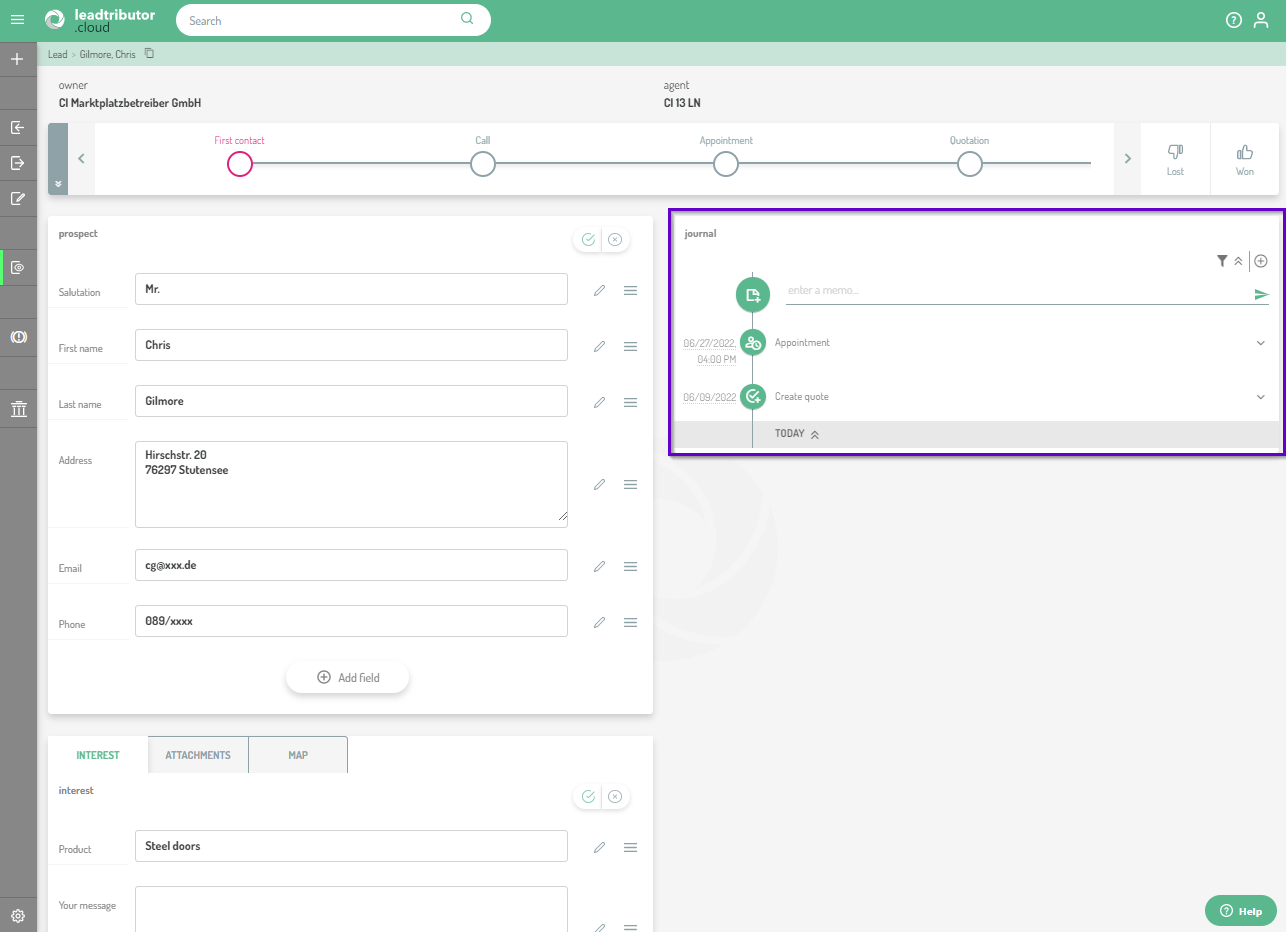
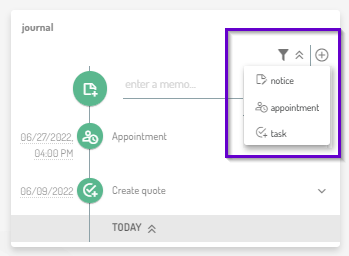
To add new journal entries, click on the small plus symbol on the right above the journal. A small window opens where you can now choose whether you want to add a notice, a task or an appointment to the journal:
Add a task
To add a task, click on task in the small submenu of the journal. A small window will open where you can now enter the details of your task, including subject, a description and the corresponding due date:
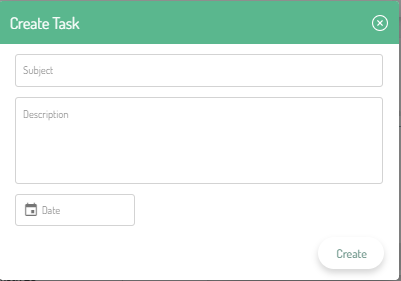
Confirm your entry by clicking on Create. A task has now been added to your journal.
Add an appointment
To add an appointment to the journal, click on Appointment in the small submenu of the journal. A small window will open where you can now enter the details of your appointment, including subject, location, a description and the corresponding start and end date including time:
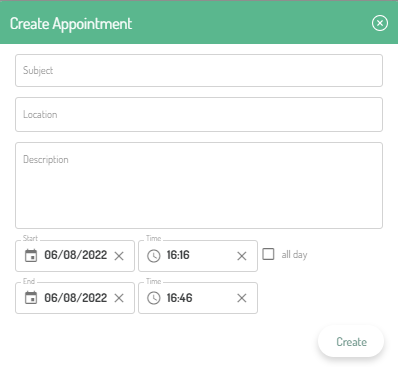
Confirm your entry by clicking on Create. An appointment has now been added to your journal.
Overview of all tasks and and appointments
To give you an overview of all pending appointments and tasks, we have added a new category to the side menu: Activities. Here you can view all tasks and appointments across all leads and edit them if necessary. 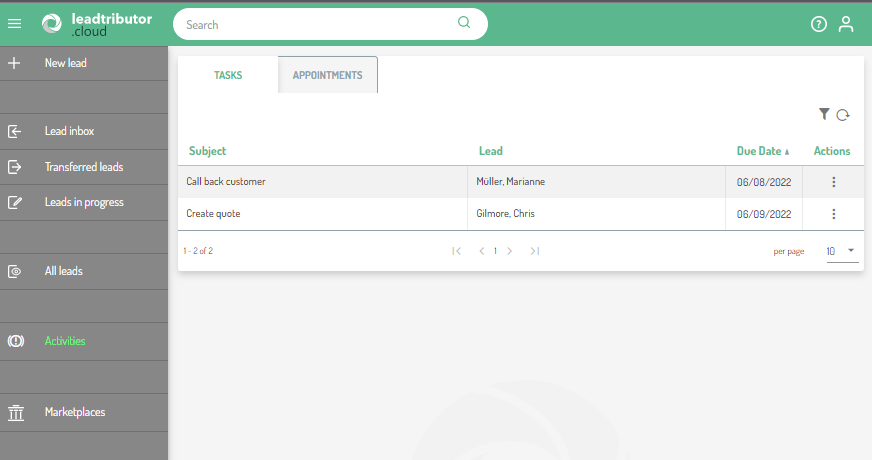
The category Activities consists of two tabs, namely Tasks and Appointments. On the Tasks tab you can edit, mark as done or delete the tasks using the three dots in column Actions: 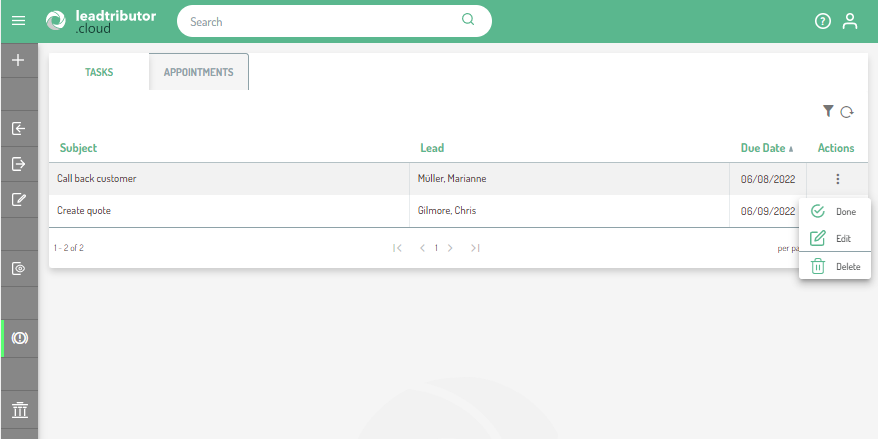
A task marked as done disappears from the overview and is highlighted with a strikethrough in the journal of the corresponding lead. By the way: You can jump from this overview to the respective lead to which the task refers by clicking in the column contents Subject and Lead.
Appointments are displayed in a calendar view in the Appointments tab:
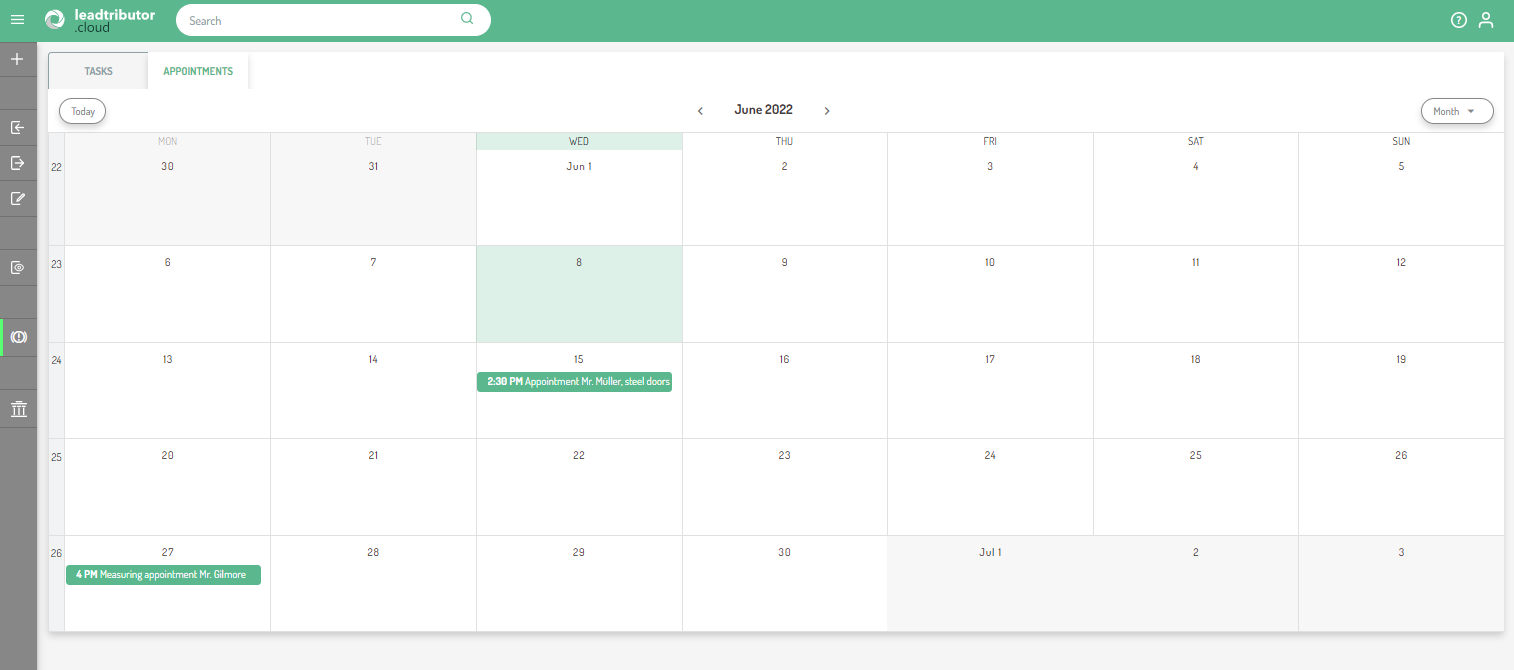
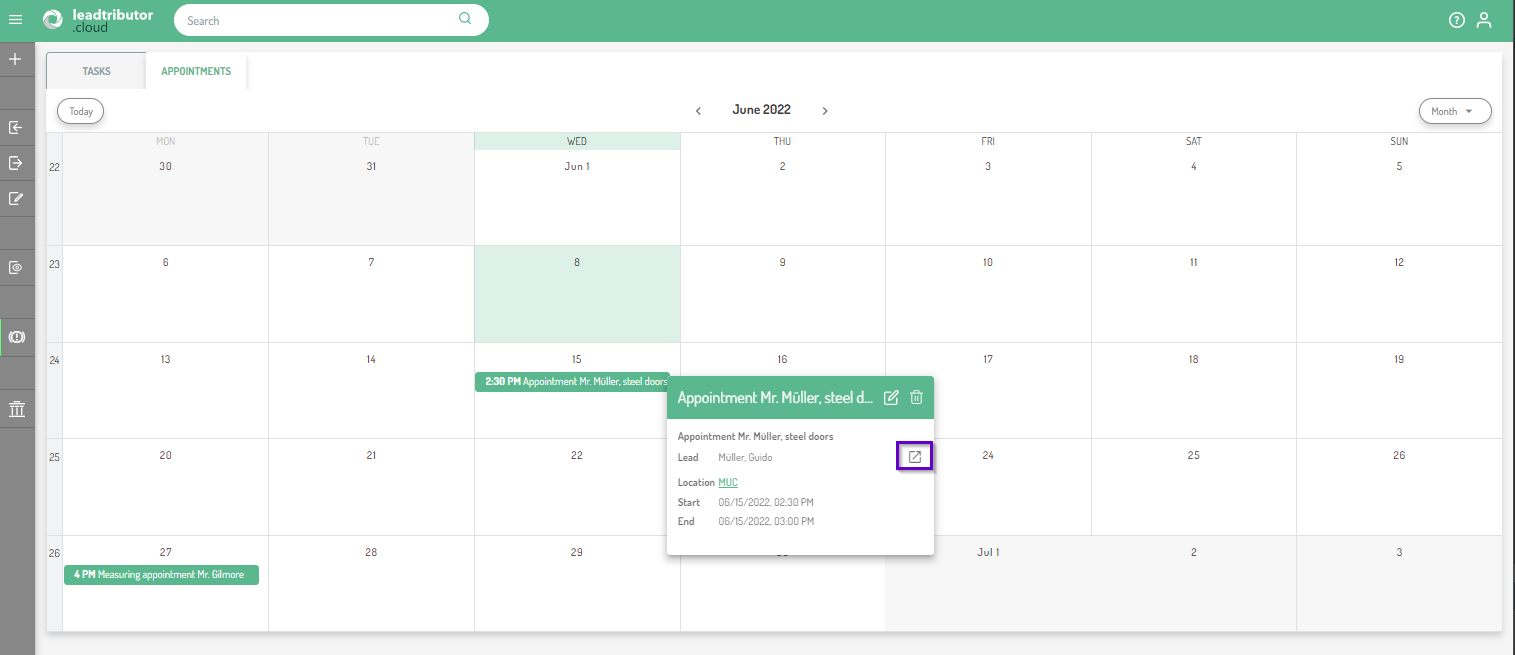
Click on the respective appointment to view the appointment details or jump directly to the lead via the purple highlighted symbol:
Comments
0 comments
Please sign in to leave a comment.